

题记
—— 执剑天涯,从你的点滴积累开始,所及之处,必精益求精,即是折腾每一天。
原创开发Flutter3.19仿抖音实战
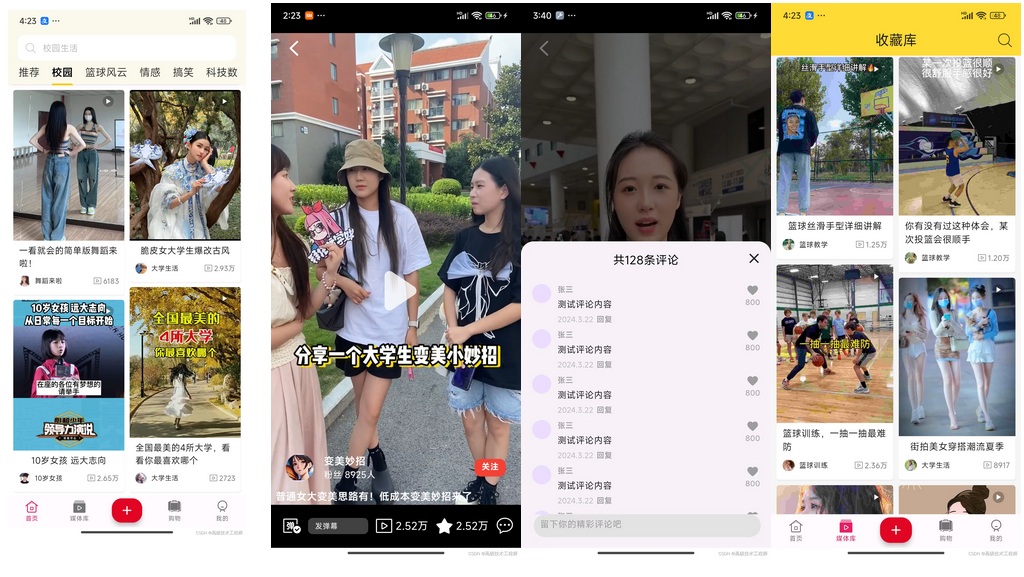
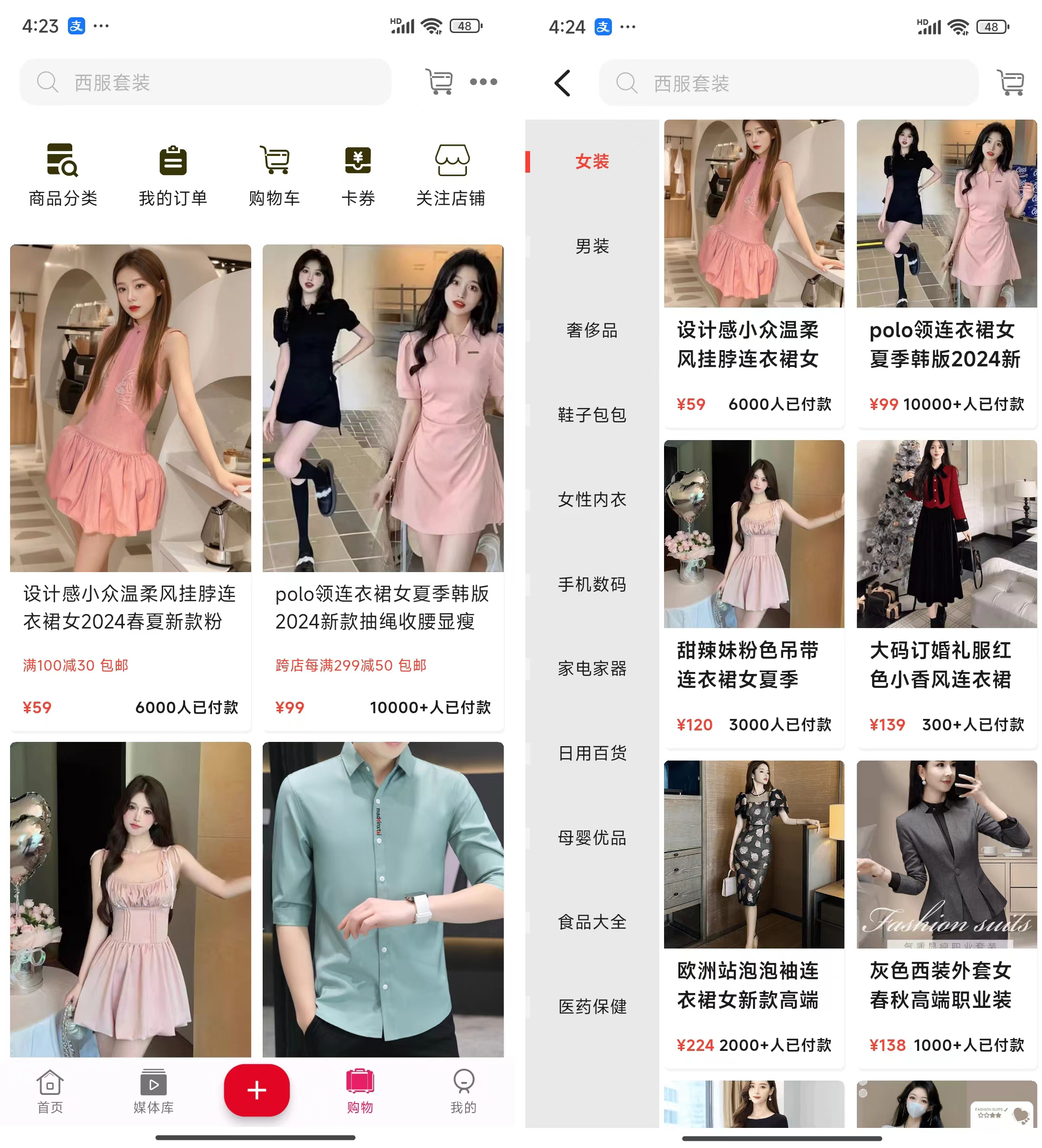
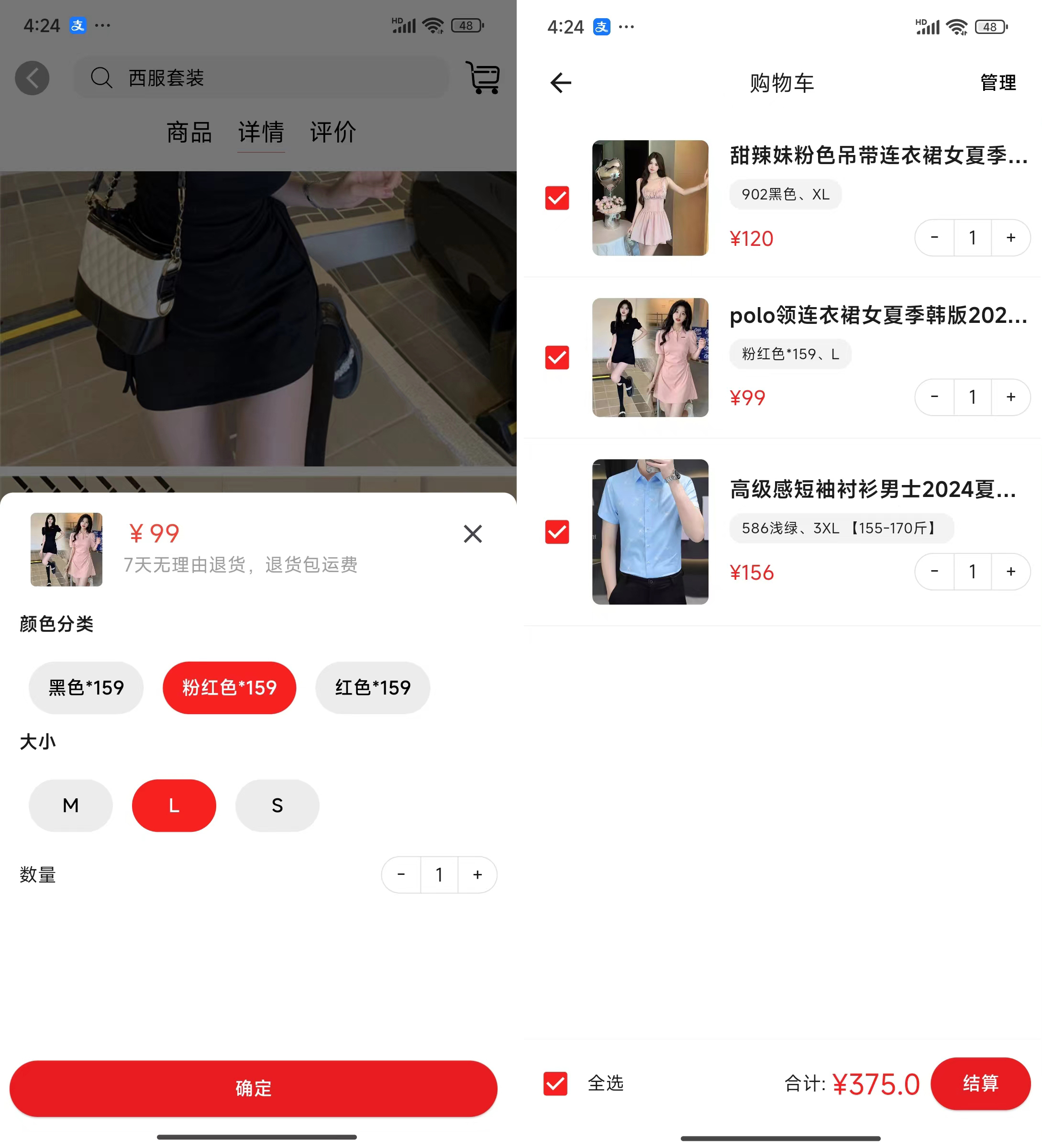
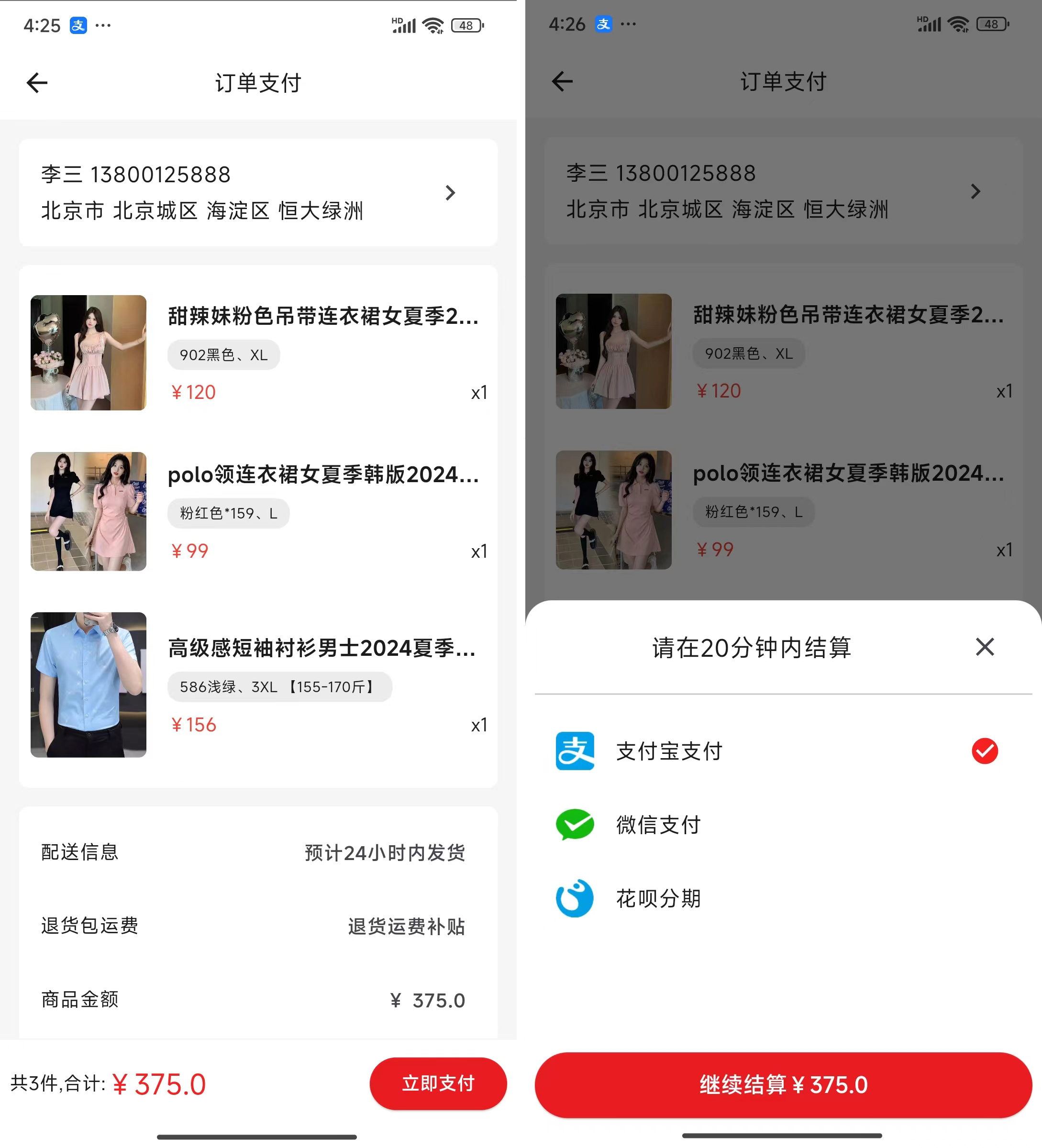
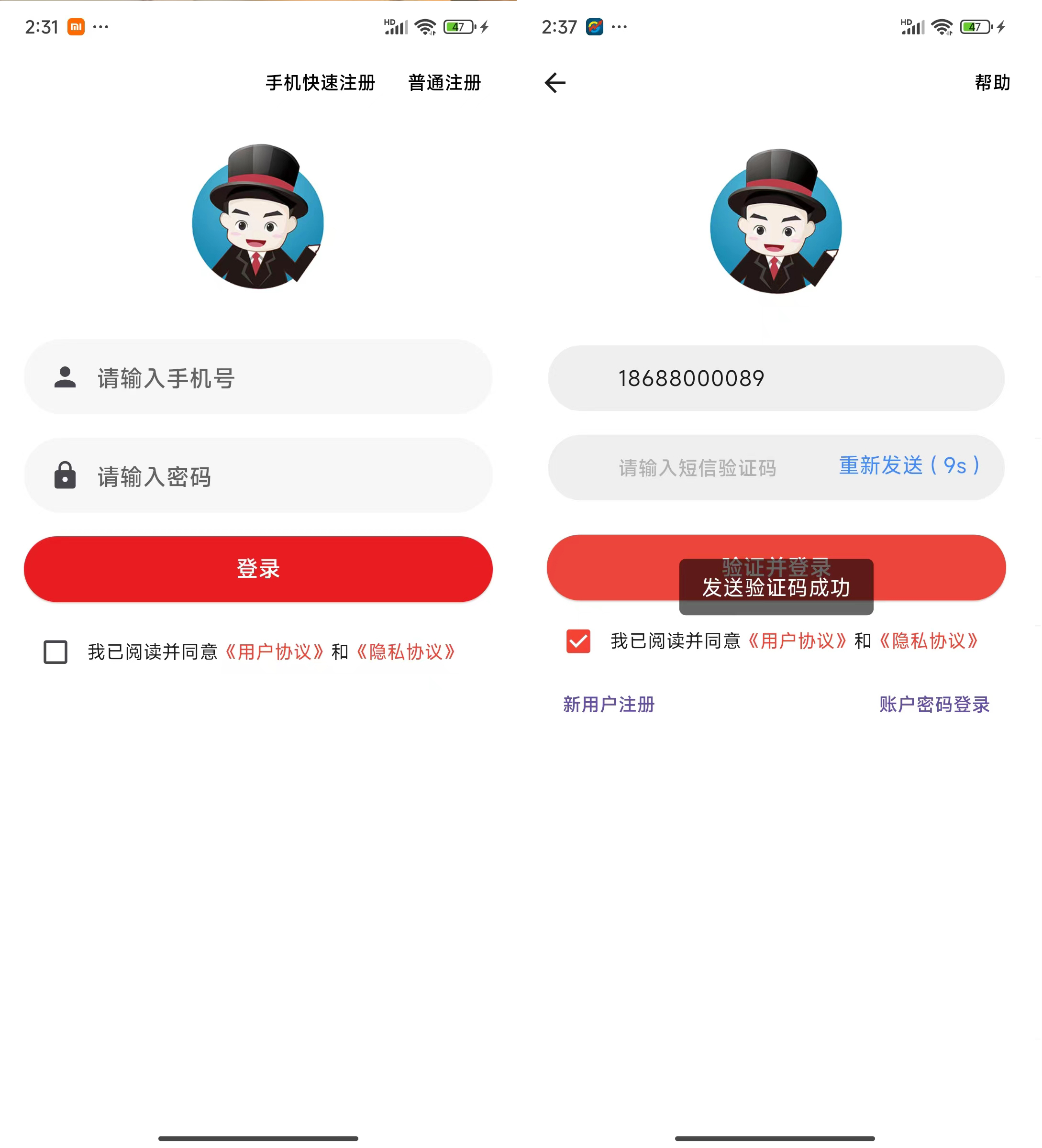
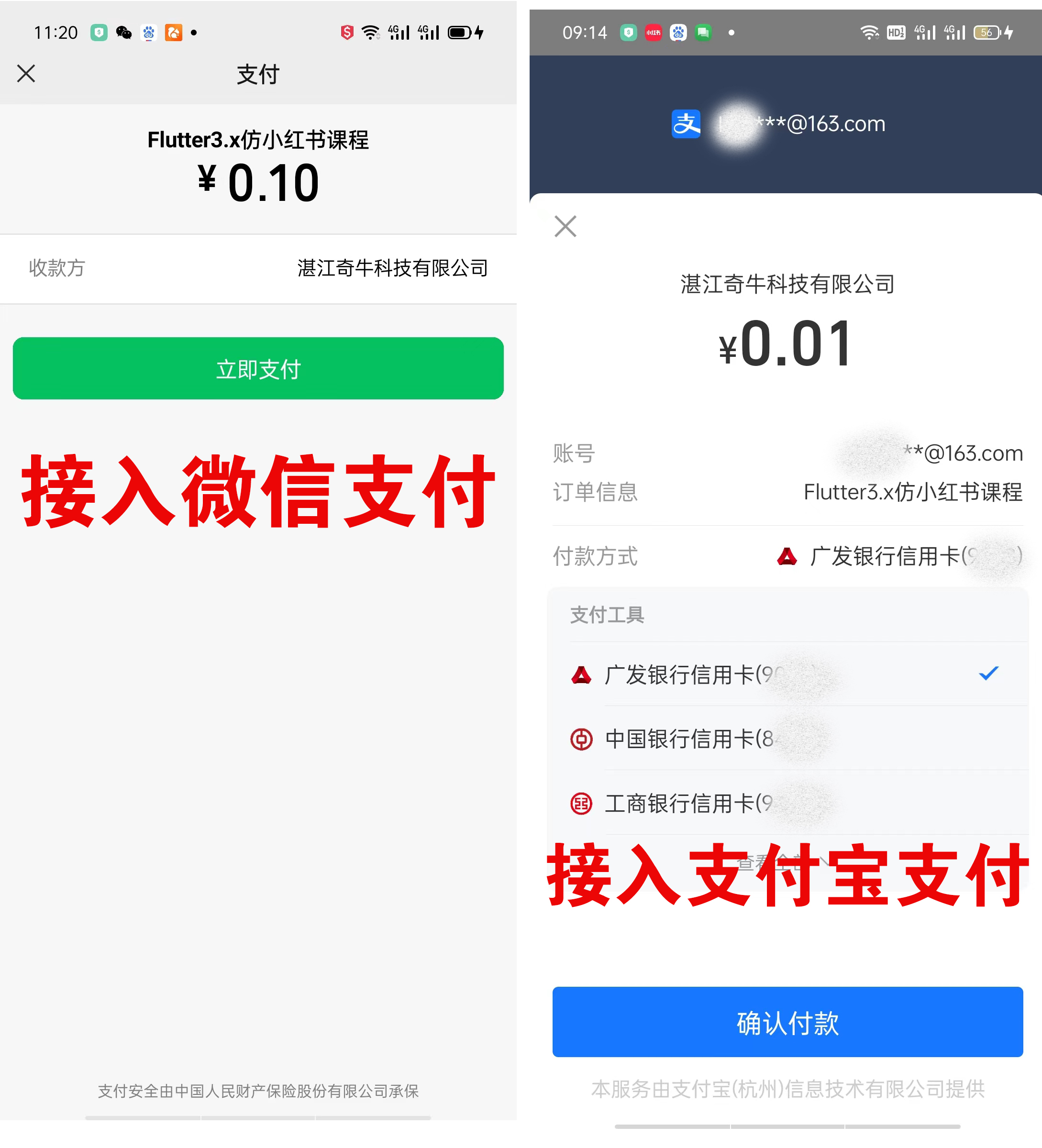
最近有空的时候用flutter3做了一个抖音的项目,方便大家学习,提供源码,有操作思路。原创开发基于flutter3.19.5+dart3.3.3+getx等技术开发仿抖音app实战项目。实现了类似抖音整屏丝滑式上下滑动视频、左右滑动切换页面模块,包含商城、购物车、支付功能等模块。
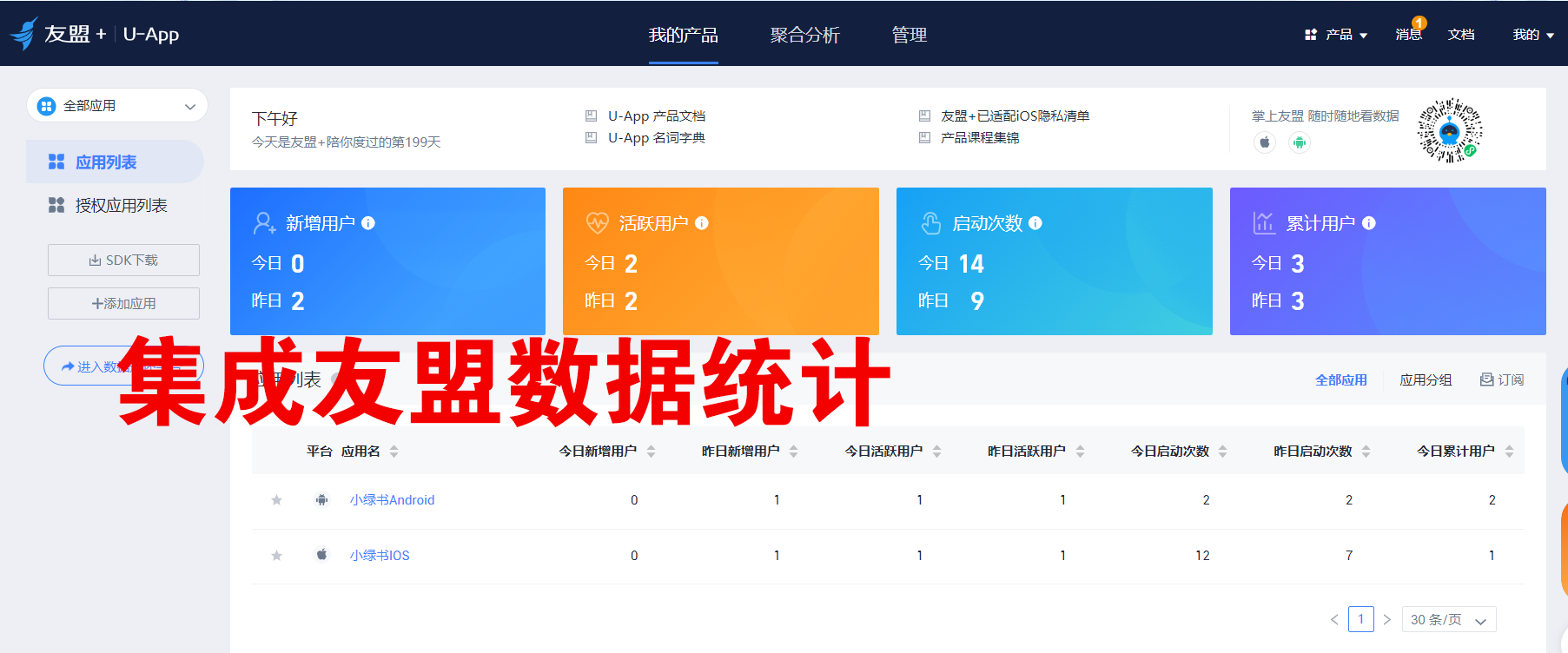
同时接入了友盟SDK统计数据,用户下载安装,活跃量,次日留存等等。
Flutter最新版本也是支持的。。。
页面布局,逻辑思路进行了多次迭代与优化,学习flutter开发app,必须要看的实战项目: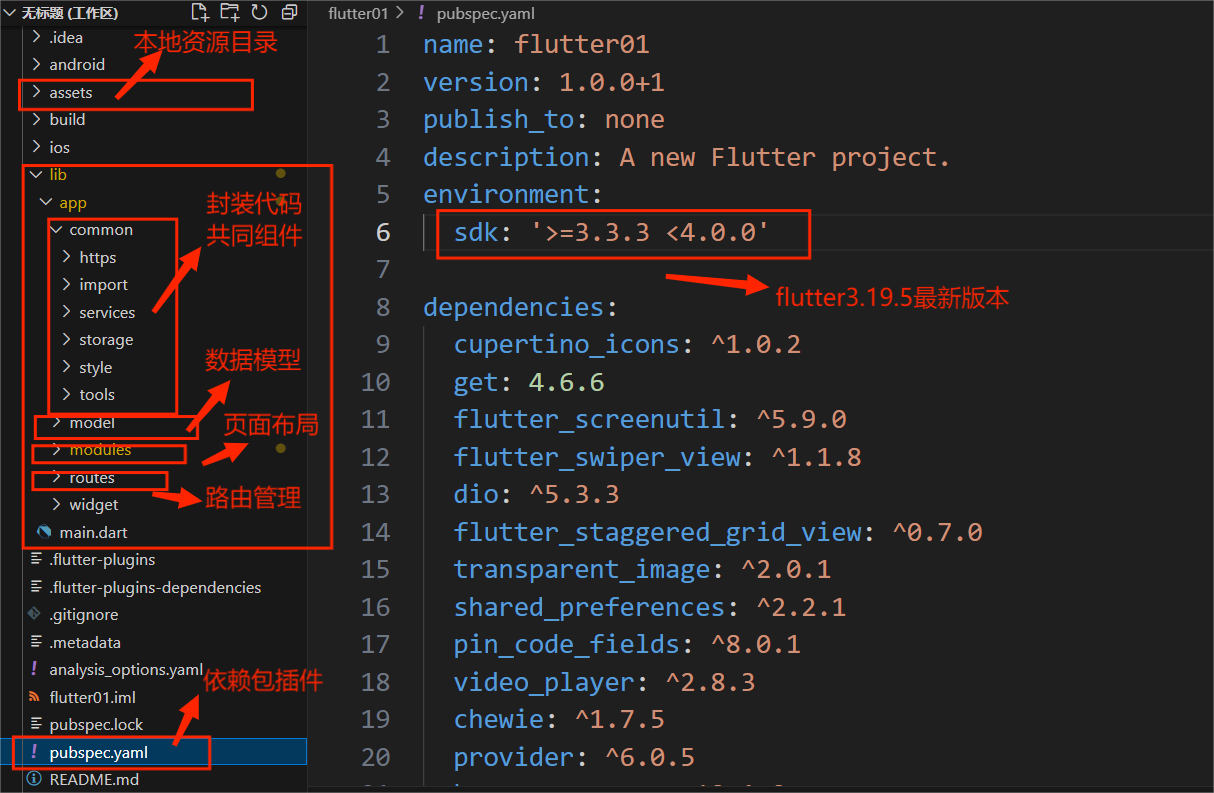
学习目标
Flutter进阶高手分为三个阶段,从易到难,学习完成后,可以使用Flutter来开发独立的APP,适用于Android、iOS双平台的应用程序。
第一阶段是 Flutter开发必备Dart基础
第二个阶段是 Flutter核心技术, 一次性掌握,组件大全、页面布局、路由、网络请求、数据缓存、动画等等
第三个阶段是 开发实战企业级APP

flutter运用技术
编辑器:vscode
技术框架:flutter3.19.5+dart3.3.3
路由/状态插件:get: ^4.6.6
网络数据:dio: ^5.3.3
缓存服务:shared_preferences: ^2.2.1
图片预览插件:photo_view: ^0.14.0
刷新加载:easy_refresh^3.3.4
toast轻提示:toast^0.3.0
视频播放器:video_player: ^2.8.3
视频播放器: chewie: ^1.7.5
.......等等
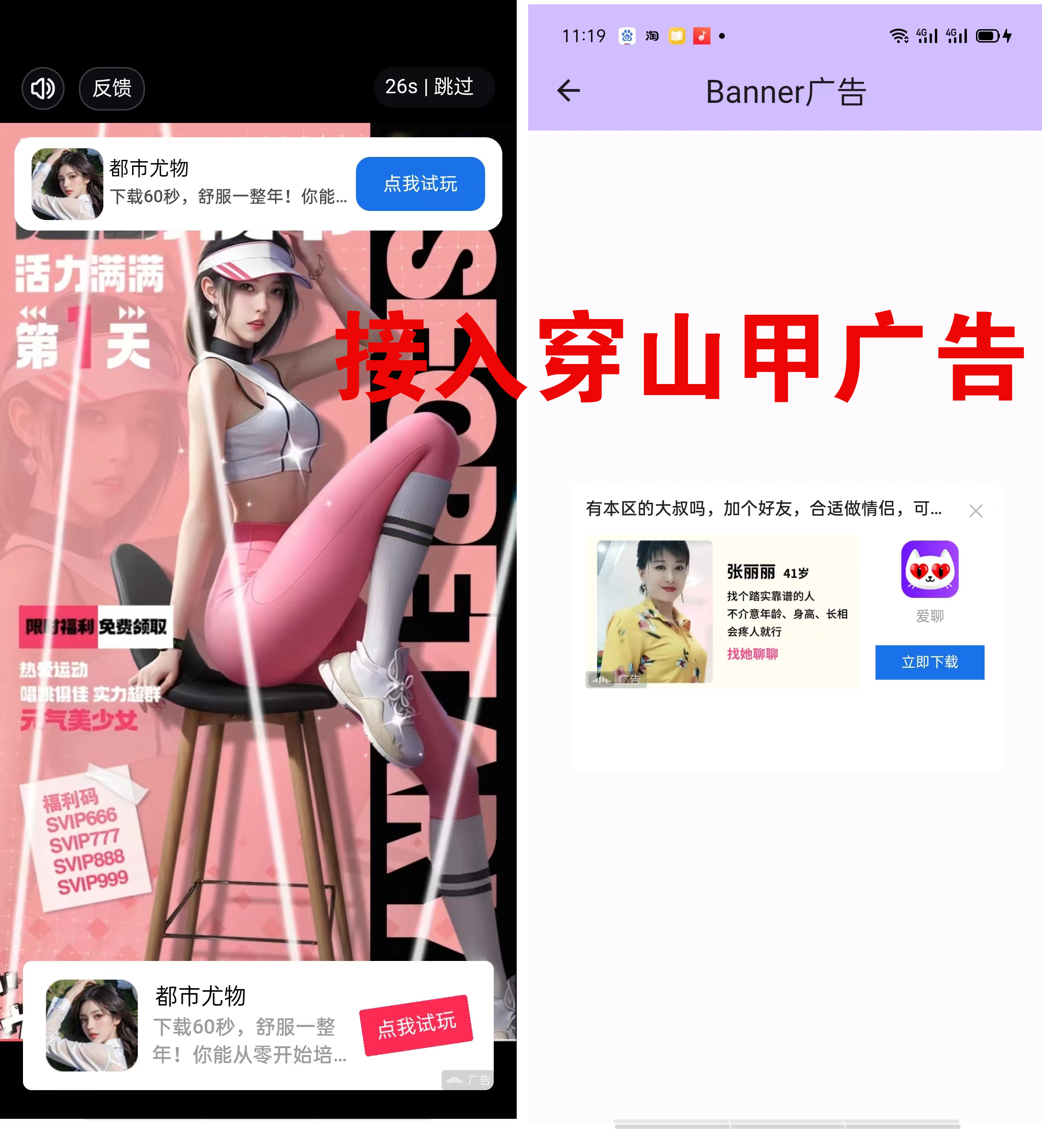
实现启动页与自定义开屏广告,可换成穿山甲广告实现收益:
flutter3.19.x仿抖音教你开发商业级APP
接入字节跳动穿山甲广告
await FlutterUnionad.register(
androidAppId: "5098580",
//穿山甲广告 Android appid 必填
iosAppId: "5098580",
//穿山甲广告 ios appid 必填
useTextureView: true,
//使用TextureView控件播放视频,默认为SurfaceView,当有SurfaceView冲突的场景,可以使用TextureView 选填
appName: "unionad_test",
//appname 必填
allowShowNotify: true,
//是否允许sdk展示通知栏提示 选填
allowShowPageWhenScreenLock: true,
//是否在锁屏场景支持展示广告落地页 选填
debug: true,
//测试阶段打开,可以通过日志排查问题,上线时去除该调用 选太难
supportMultiProcess: true,
//是否支持多进程,true支持 选填
directDownloadNetworkType: [
FlutterUnionad.NetCode.NETWORK_STATE_2G,
FlutterUnionad.NetCode.NETWORK_STATE_3G,
FlutterUnionad.NetCode.NETWORK_STATE_4G,
FlutterUnionad.NetCode.NETWORK_STATE_WIFI
]); //允许直接下载的网络状态集合 选填//允许直接下载的网络状态集合 选填
flutter3.19.x+getx实现了类似抖音全屏上下滑动、左右切换页面效果:
使用 bottomNavigationBar 组件实现底部导航页面模块切换
flutter3.19.x+getx仿抖音教你开发商业级AP
flutter3.19.x+getx仿抖音教你开发商业级AP
视频页面布局,使用了 Stack 组件定位实现页面布局。
return Scaffold(
backgroundColor: Colors.black,
body: SafeArea(
child: GetBuilder(builder: (c) {
return controller.isLoading
? const Center(child: CircularProgressIndicator())
: controller.videos.isEmpty
? Center(
child: Column(
mainAxisSize: MainAxisSize.min,
children: [
const Padding(
padding: EdgeInsets.only(bottom: 8.0),
child: Text("暂无数据"),
),
ElevatedButton(
style: ButtonStyle(backgroundColor: MaterialStateProperty.all(Colors.red)),
onPressed: controller.initLoad,
child: const Text("刷新"),
),
],
))
: PageView.builder(
controller: PageController(
initialPage: controller.currentIndex,
viewportFraction: 1,
),
itemCount: controller.videos.length,
onPageChanged: (index) {
controller.changeVideo(index);
},
scrollDirection: Axis.vertical,
itemBuilder: (context, index) {
return videoCard(controller.videos[index]);
},
);
}),
),
使用TabBar组件和PageView组件实现顶部菜单和页面联动切换效果
Obx(
() => Scaffold(
body: IndexedStack(
index: homeController.currentIndex.value,
children: [
IndexPage(),
homeController.currentIndex.value == 1 ? VideoPage() : Container(),
Container(),
MessagePage(),
MinePage(),
],
),
bottomNavigationBar: Theme(
data: Theme.of(context).copyWith(
splashColor: Colors.transparent,
highlightColor: Colors.transparent,
),
child: BottomNavigationBar(
elevation: 0,
iconSize: 24,
backgroundColor: homeController.currentIndex.value == 1 ? Colors.black : Colors.white,
selectedItemColor: homeController.currentIndex.value == 1 ? Colors.white : Colors.black,
unselectedItemColor: const Color(0xff999999),
type: BottomNavigationBarType.fixed,
currentIndex: homeController.currentIndex.value,
unselectedFontSize: 16,
selectedFontSize: 18,
items: const [
BottomNavigationBarItem(
icon: SizedBox.shrink(),
label: "首页",
),
BottomNavigationBarItem(
icon: SizedBox.shrink(),
label: "视频",
),
BottomNavigationBarItem(
icon: Icon(
Icons.add_box,
size: 32,
color: Colors.red,
),
label: "",
),
BottomNavigationBarItem(
icon: SizedBox.shrink(),
label: "消息",
),
BottomNavigationBarItem(
icon: SizedBox.shrink(),
label: "我",
),
],
onTap: (index) {
homeController.onChangePage(index);
},
),
),
),
);
video_player基本使用
/// 声明控制器
late VideoPlayerController controller;
/// 初始化控制器
_controller = VideoPlayerController.network(list[0]['video_url'])
///设置视频循环播放
..setLooping(true)
///设置监听
..addListener(() {
setState(() {
});
})
///初始化
..initialize().then(() async {
///初始化完成更新状态,不然播放器不会播放
setState(() {
playOrPauseVideo();
});
}).catchError((err) {
///播放出错
print(err);
});
/// 显示视频
SizedBox(
height: 240,
width: MediaQuery.of(context).size.width,
child: _controller.value.isInitialized
? AspectRatio(
aspectRatio:
_controller.value.aspectRatio,
child: VideoPlayer(_controller),
)
: const Text(
"没有要播放的视频",
style: TextStyle(color: Colors.red),
),
),
注意点:在播放器initialize 完后一定要更新播放器的状态,不然是widget拿不到状态改变,是不会播放的
视频播放,暂停
/// 判断播放和暂停
void playOrPauseVideo() {
setState(() {
if (_controller.value.isPlaying) {
_controller.pause();
} else {
// If the video is paused, play it.
_controller.play();
}
});
}
实现抖音滑动效果
核心原理就是使用PageView来实现的,需要注意的是每次滑动的时候需要将上一个_controller释放掉以后再重新创建一个,不然上个视频还是会播放的.具体代码如下:
PageView.builder(
physics: const QuickerScrollPhysics(),
controller: pageController,
scrollDirection: Axis.vertical,
itemCount: list.length,
onPageChanged: (index) {
_controller.dispose();
_controller =
VideoPlayerController.network(list[index]['video_url'])
..setLooping(true)
..addListener(() {
setState(() {
});
})
..initialize().then(() async {
setState(() {
playOrPauseVideo();
});
}).catchError((err) {
print(err);
});
        if (index == list.length - 1) {
          Future.delayed(
              const Duration(milliseconds: 200)).then((lwh) {
            _pageController.jumpToPage(0);
          });

        }
      },
      itemBuilder: (context, i) {
        return Stack(
          children: [
            /// 播放器view
            Container(
              color: Colors.black,
              child: Center(
                child: Stack(
                  children: [
                    AppNetImage(
                      fit: BoxFit.fitWidth,
                      imageUrl: list[i]['image_url'],
                      height: 240,
                      width: MediaQuery.of(context).size.width,
                    ),
                    Positioned(
                        child: Stack(
                      children: [
                        InkWell(
                          child: SizedBox(
                            height: 240,
                            width: MediaQuery.of(context).size.width,
                            child: _controller.value.isInitialized
                                ? AspectRatio(
                                    aspectRatio:
                                        _controller.value.aspectRatio,
                                    child: VideoPlayer(_controller),
                                  )
                                : const Text(
                                    "没有要播放的视频",
                                    style: TextStyle(color: Colors.red),
                                  ),
                          ),
                          onTap: () {
                            playOrPauseVideo();
                          },
                        ),
                      ],
                    )),
                    Positioned(
                      left: MediaQuery.of(context).size.width / 2 - 30,
                      top: 90,
                      child: _controller.value.isPlaying
                          ? const SizedBox()
                          : const Icon(
                              Icons.play_arrow,
                              color: Colors.white,
                              size: 60,
                            ),
                    ),
                  ],
                ),
              ),
            ),

            /// 显示全屏按钮
            Positioned(
                bottom: MediaQuery.of(context).padding.bottom + 100,
                right: 8,
                child: InkWell(
                  child: const Icon(
                    Icons.aspect_ratio,
                    color: Colors.white,
                    size: 30,
                  ),
                  onTap: () {
                    _toggleFullScreen();
                  },
                )),

            /// 显示进度条
            Positioned(
                bottom: MediaQuery.of(context).padding.bottom,
                child: SizedBox(
                  width: MediaQuery.of(context).size.width,
                  height: 1,
                  child: VideoProgressIndicator(
                    _controller,
                    allowScrubbing: true,
                    padding: const EdgeInsets.all(0),
                    colors: const VideoProgressColors(
                      playedColor: Colors.white, // 已播放的颜色
                      bufferedColor:
                       Color.fromRGBO(255, 255, 255, .5), // 缓存中的颜色
                      backgroundColor:
                       Color.fromRGBO(255, 255, 255, .3), // 为缓存的颜色
                    ),
                  ),
                ))
          ],
        );
      },
    )
常言道,学而不思则罔,思而不学则殆。在学习flutter时也应该多多思考,积极消化自己不会的知识,这也能强化我们的技术水平,帮助我们更好适应快节奏的开发进程,成为一名更有竞争力的Android开发者!
由于文件比较大,这里只是将部分截图出来,如果你觉得这些内容对你有帮助:
【扫描下方卡片即可免费领取!!!】
0条评论